How to automate AirBuddy with AppleScript
AirBuddy 3 includes AppleScript support for inspecting devices and performing actions. AppleScript access is off by default because scripts can read and change AirBuddy data.
Turn on AppleScript access
- Open AirBuddy settings.
- Select General.
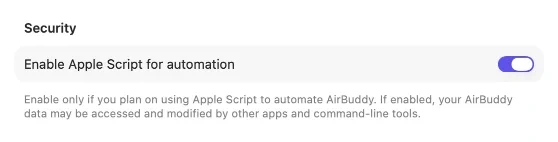
- In Security, turn on Enable AppleScript for automation.
Only turn on this setting if you plan to run scripts that you trust.
Open AirBuddy’s scripting dictionary
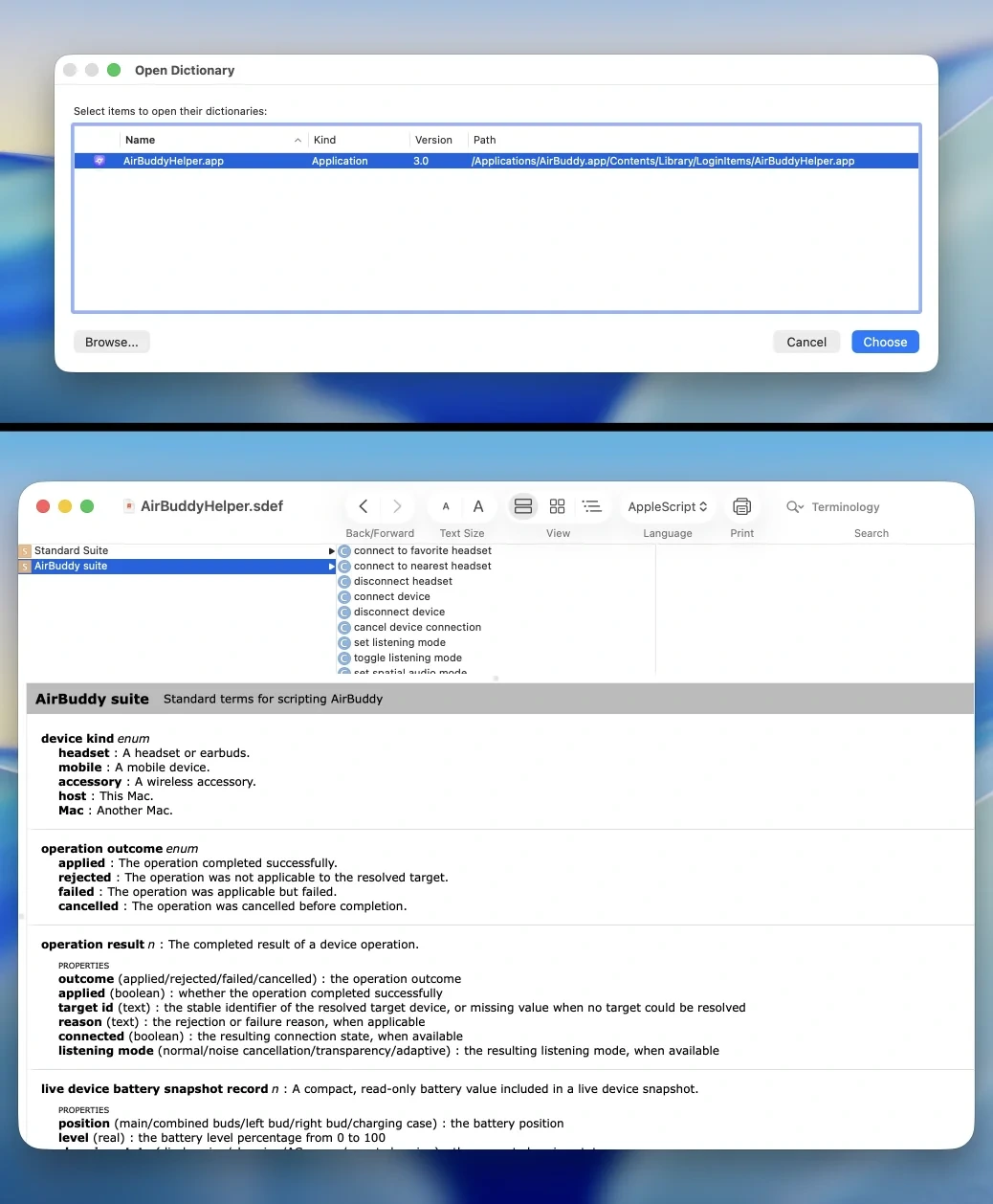
- Open Script Editor from the Utilities folder in the Applications folder.
- Choose File > Open Dictionary.
- Select AirBuddyHelper, then click Choose.
The dictionary describes the objects, properties, commands, parameters, and results available to scripts.
What scripts can do
Scripts can inspect AirBuddy’s device list, battery details, available actions, listening and Spatial Audio modes, pinned and favorite states, and current audio routes. They can also perform supported actions such as connecting or disconnecting a device, changing listening modes, toggling microphone input or Audio Input Lock, showing Desktop Widgets, and opening the Dashboard or Magic Handoff picker.
Commands return operation details and errors so that scripts can respond when an action isn’t available or doesn’t complete.
For automation that doesn’t require scripting, use AirBuddy’s actions in Shortcuts.
Learn more
AirBuddy includes a detailed AppleScript guide with practical examples. Choose Help > Scripting AirBuddy… in AirBuddy settings to open the AppleScript guide.