How to use Now Playing in AirBuddy
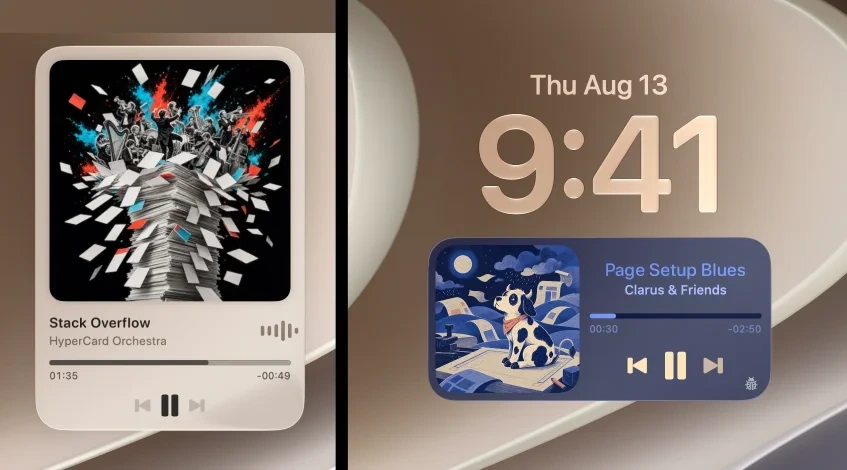
AirBuddy can show artwork, playback information, and media controls in the Action HUD, on the Desktop, on the Lock Screen, and in standard macOS widgets. It works with apps that provide Now Playing information to macOS, including Music, Podcasts, Spotify, and supported web browsers.
Configure the Now Playing HUD
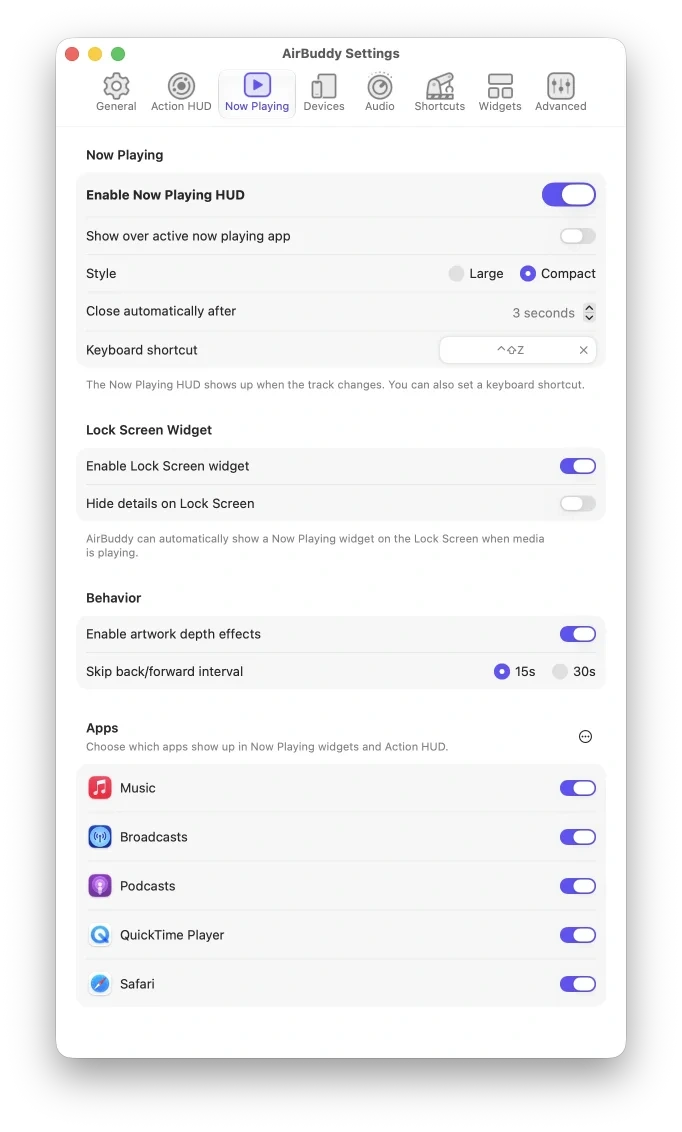
- Open AirBuddy settings.
- Select Now Playing.
- Turn on Enable Now Playing HUD.
- Choose the large or compact style and how long the HUD remains on screen.
- If you want to show it on demand, assign a keyboard shortcut.
By default, the HUD appears when the track changes and the now playing app is not in the foreground. Turn on Show over active now playing app if you also want it to appear when you’re using the app that is playing the media.
Use playback controls
Depending on the current app and media, the HUD and widgets can play or pause, skip tracks or podcast chapters, seek, change the output volume, and like a song. Some controls aren’t available in every app.
Choose which apps appear
In the Apps section of Now Playing settings, turn apps on or off. Use the More button to enable every known app or add another app manually.
Show Now Playing on the Lock Screen
Turn on Enable Lock Screen widget to show Now Playing automatically below the clock while media is playing. AirBuddy Desktop Widgets must be on before this option is available.
Turn on Hide details on Lock Screen if you don’t want artwork and track information visible while the Mac is locked.
Customize artwork and skipping
In the Behavior section, you can turn layered artwork depth effects on or off and choose the interval used when skipping backward or forward.
If you want a persistent Now Playing widget elsewhere on the Desktop, add one with AirBuddy Desktop Widgets.