How to customize the AirBuddy menu bar icon
AirBuddy can use its app icon in the menu bar, show the current Mac’s battery level, or run without a menu bar icon.
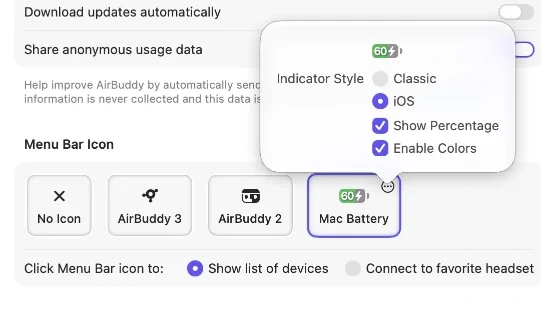
Choose an icon style
- Open AirBuddy settings.
- Select General.
- In Menu Bar Icon, choose one of the available styles:
- AirBuddy 3 icon
- Classic AirBuddy 2 icon
- Mac Battery
- No Icon
When Mac Battery is selected, click its More button to choose the Classic or iOS-inspired style and whether to show a percentage.
Reposition the icon
Press and hold the Command key, then drag the AirBuddy icon to a new position in the menu bar.
Choose what happens when you click the icon
Use Click Menu Bar icon to to choose Show list of devices or Connect to favorite headset.
Control-click the AirBuddy icon for quick access to the Dashboard, Desktop Widgets, settings, and Quit.
If you choose No Icon, you can still open AirBuddy settings from the Applications folder or Spotlight, and you can assign keyboard shortcuts for the Dashboard and other features in Shortcuts settings.
If your selection immediately returns to No Icon, allow AirBuddy in the macOS menu bar.