How to use AirBuddy Desktop Widgets
AirBuddy Desktop Widgets are separate from the standard macOS widgets provided through WidgetKit. AirBuddy’s widgets can be placed freely on the Desktop, use interactive controls, and appear over the screen saver and on the Lock Screen.
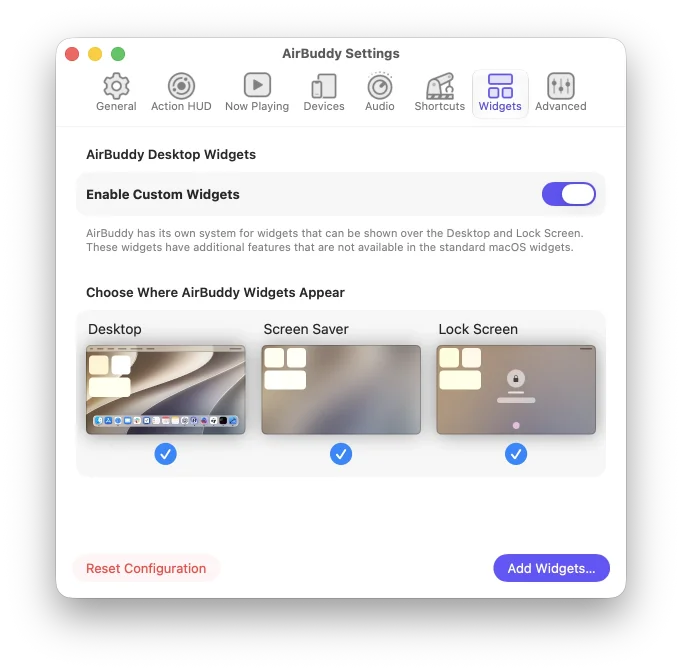
Turn on Desktop Widgets
- Open AirBuddy settings.
- Select Widgets.
- Turn on AirBuddy Desktop Widgets.
- Choose whether widgets appear on the Desktop and over the screen saver. Lock Screen widgets use the screen saver configuration.
- Click Set Up Widgets.
Add and arrange widgets
Use the widget gallery to add supported widgets. Drag widgets anywhere in the preview. Alignment guides and snapping help line them up with other widgets and the edges of the screen.
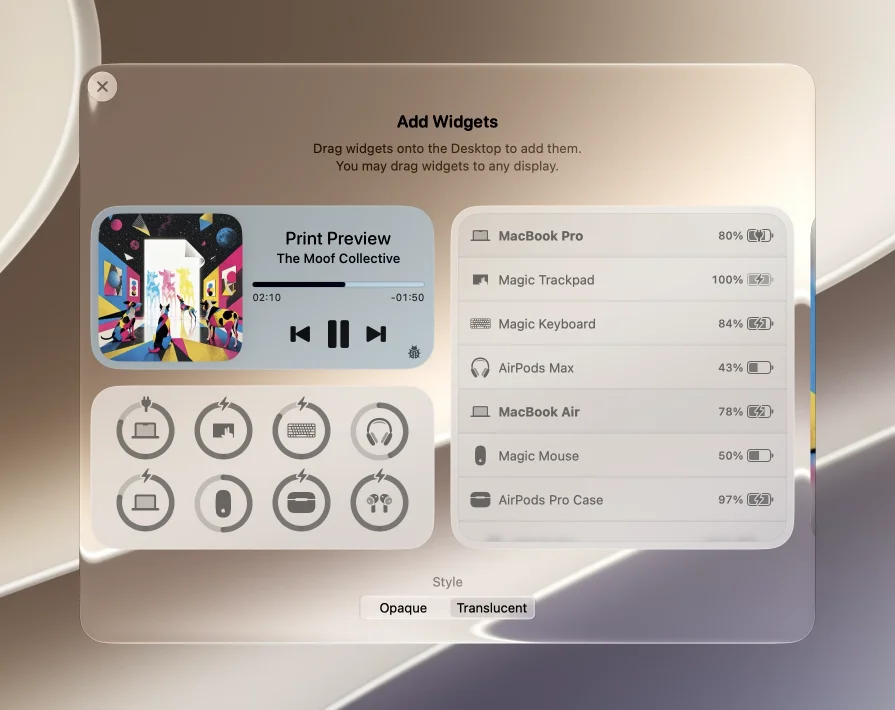
- If your Mac has a trackpad, you can pinch on a widget to change its size.
- Hold Option while dragging an existing widget to duplicate it.
- Configure a Batteries widget to show every device, selected device categories, or a custom set of devices.
- Configure AirPods widgets with controls for volume, listening modes, noise cancellation, and Spatial Audio.
- Add more than one widget of the same type when you want different configurations.
AirBuddy stores a separate widget layout for each display, so you may have different widgets on internal and external displays, for example.
Configure Lock Screen widgets
AirBuddy can use a different appearance for widgets on the Desktop and Lock Screen, but the layout is shared between Desktop and Lock Screen.
To edit the Lock Screen appearance, Control-click an existing widget on the Lock Screen and choose More Widgets while the Mac is locked. You can disable the Desktop option so that widgets show up only on the Lock Screen. When the Desktop option is disabled, AirBuddy displays a preview of the Lock Screen when editing the widget layout.
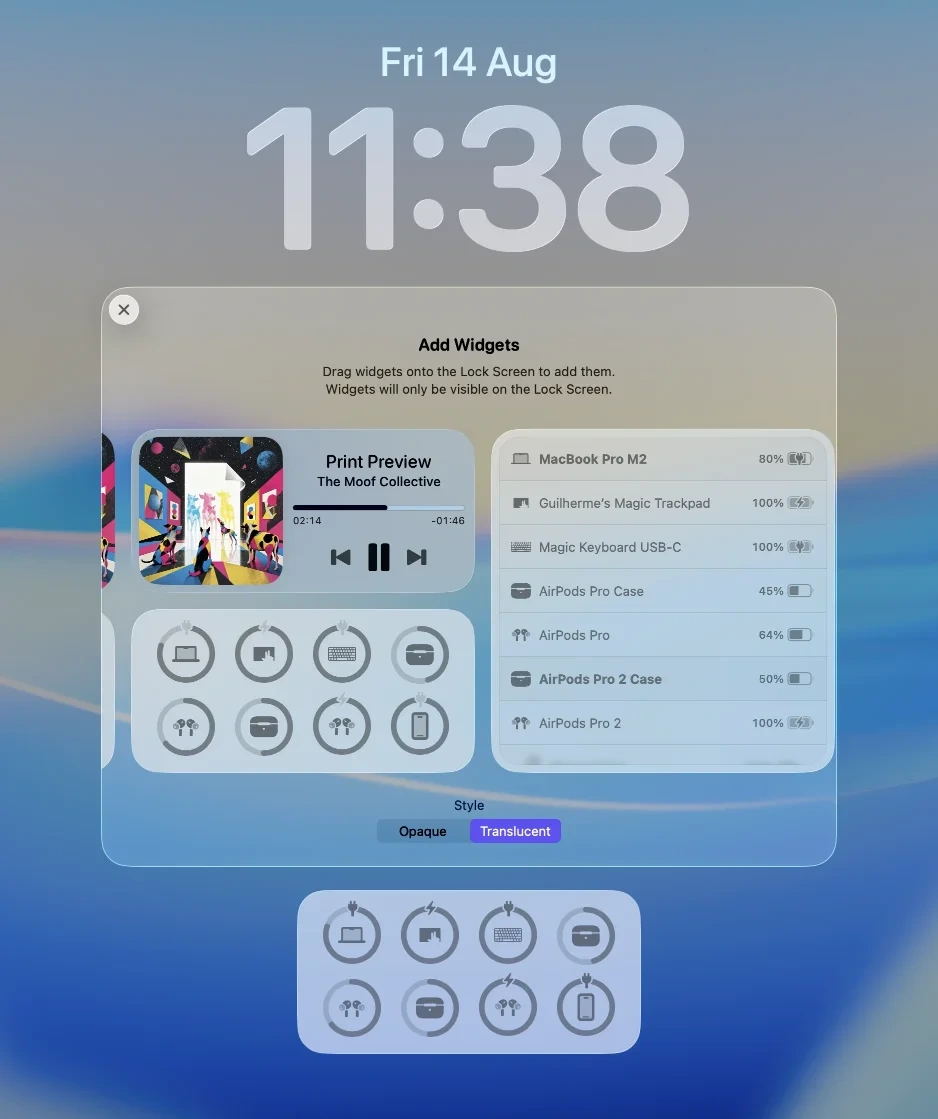
To automatically place Now Playing below the clock, configure the Lock Screen widget in Now Playing settings.
Bring widgets above other apps
Open AirBuddy settings and select Shortcuts, then assign a shortcut to Show Desktop Widgets. Press it to temporarily bring all AirBuddy Desktop Widgets above your other apps.
Reset the widget layout
In Widgets settings, click Reset Configuration to delete every AirBuddy Desktop Widget and its configuration. This action can’t be undone.
For problems with AirBuddy’s standard macOS widgets, see Troubleshooting AirBuddy widget issues.