How to use and customize the Action HUD
The Action HUD is the compact interface AirBuddy displays near the top of the screen. It brings together AirPods status, connection progress, volume and brightness changes, listening modes, Spatial Audio, Now Playing, Battery Alerts, Magic Handoff, and other events in one place.
Choose its appearance and position
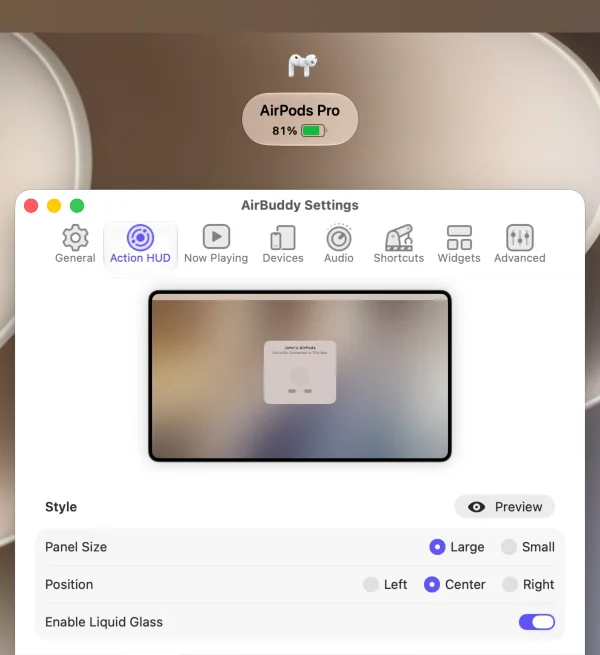
Open AirBuddy settings, then select Action HUD. You can:
- Choose a large or small AirPods panel
- Place the Action HUD on the left, center, or right side of the screen
- Choose an automatic, light, or dark theme on supported versions of macOS
- Turn Liquid Glass on or off on macOS Tahoe or later
- Preview your current configuration without leaving settings
Some compact notifications, including volume, connection, and Now Playing events, always use the small layout.
Choose which events appear
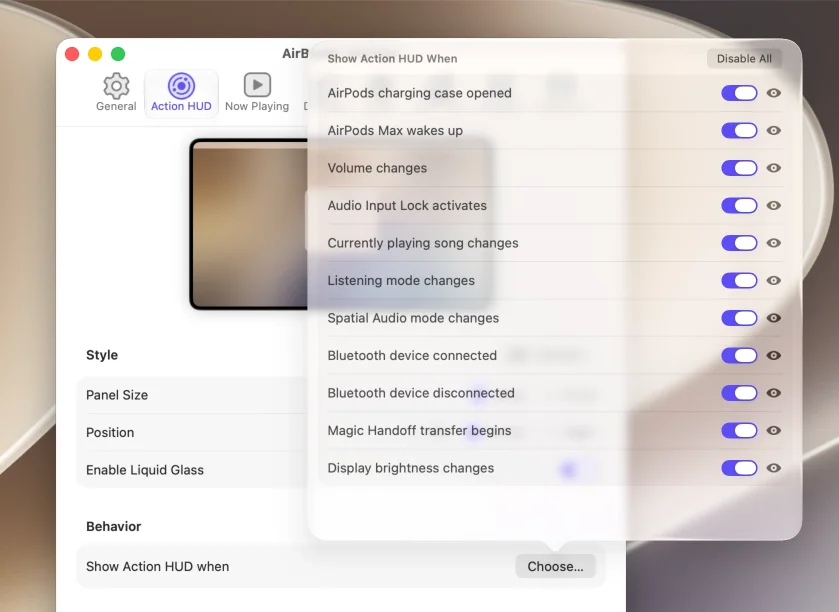
In Action HUD settings, locate Show Action HUD when, then click Choose. Select the events that you want AirBuddy to display. Use the preview button beside an event to see what it looks like.
On a MacBook with a supported camera housing, select Show in notch when available to let compatible events use the compact notch presentation.
Show AirPods status manually
Set a shortcut beside Show manually in Action HUD settings. Press the shortcut from any app to show the nearest AirPods.
Control when the AirPods panel closes
The Details section includes options to close the AirPods panel when playback begins, close an automatically displayed panel when it isn’t used, or prevent the panel from appearing while the Mac is locked.
You can also click the close button, click or swipe the panel, or cancel an AirPods connection while it’s in progress.
Adjust nearby-device behavior
The Hardware Options section includes these controls:
- Filter devices by distance waits until AirPods are near the Mac before showing their status.
- Control with empty charging case lets a supported charging case show the Action HUD while the earbuds are out.
- Preserve power reduces Bluetooth scanning. Nearby-device updates may take longer while this option is on.
To prevent selected Action HUD events while a Focus is active, use AirBuddy’s Focus Filters.
Volume and brightness indicators on macOS 26.3 or later
AirBuddy can display its own volume and brightness Action HUDs, but macOS 26.3 or later doesn’t let AirBuddy hide the corresponding system indicators. These AirBuddy events are off by default on affected systems, but you can turn them on from the event picker.