Why isn’t AirBuddy showing in the menu bar?
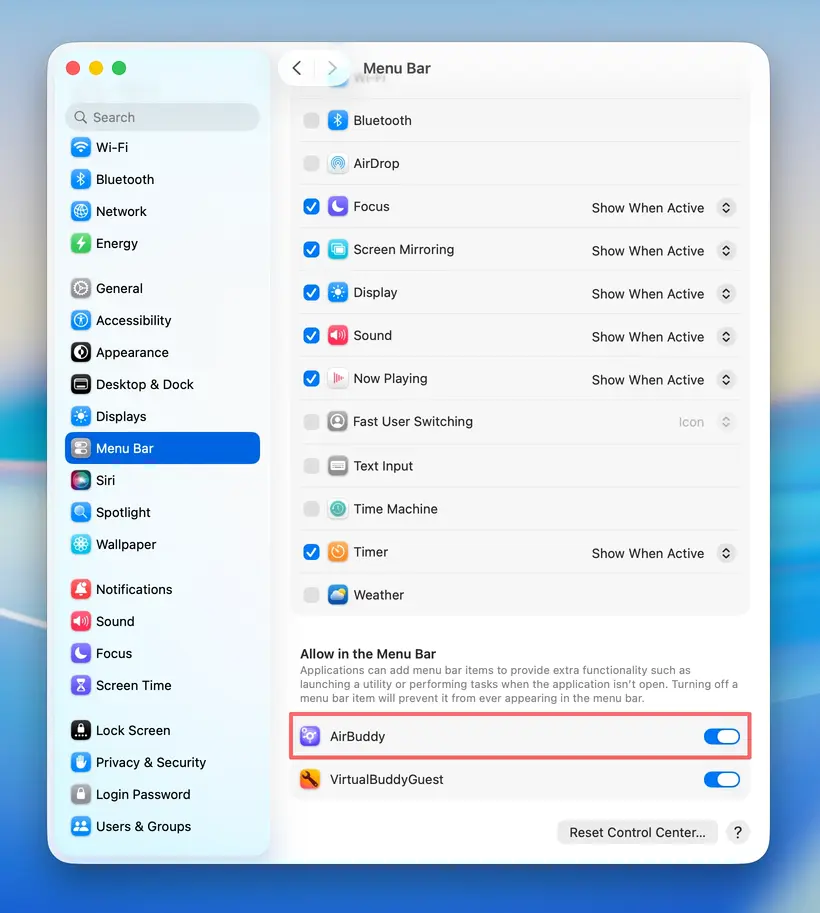
On macOS Tahoe or later, this can happen when AirBuddy is turned off in the systemwide Allow in the Menu Bar setting. When this setting is off, choosing AirBuddy 3 or Mac Battery for Menu Bar Icon in AirBuddy settings returns to No Icon.
Allow AirBuddy in the menu bar
- Open System Settings.
- Select Menu Bar in the sidebar.
- Scroll to Allow in the Menu Bar.
- Turn on AirBuddy.
Return to AirBuddy settings, select General, then choose the menu bar icon you want.